
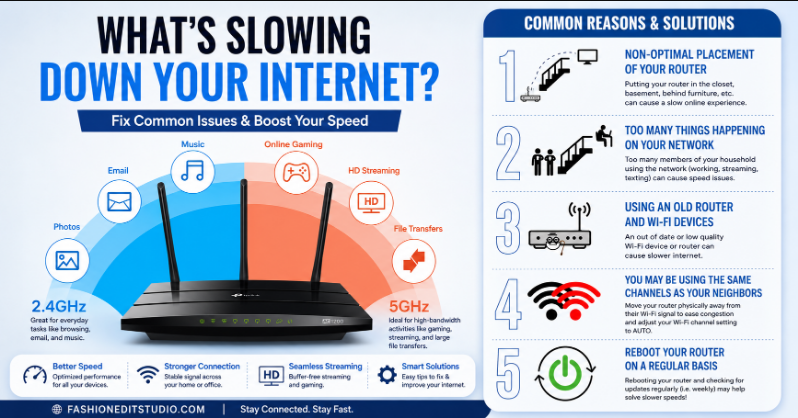
Nothing tests human patience quite like a spinning loading wheel. Whether you are mid-meeting, clutching a gaming controller, or trying to stream a movie, a sluggish connection can bring your entire day to a grinding halt.
If you are wondering how to fix slow wifi at home, you are not alone. The solution rarely requires calling an expensive technician. Most home wireless bottlenecks stem from easily fixable hardware glitches, poor router placement, or crowded frequencies.
This guide walks you through a practical, step-by-step troubleshooting process to reclaim your high-speed internet.
1. Diagnose Before You Fix: Run a Speed Test
Before changing any settings, establish a benchmark. Disconnect your phone or computer from Wi-Fi, plug it directly into your modem using a Cat6 Ethernet cable, and visit a trusted speed testing site like Speedtest.net or Fast.com.
- If the wired speed is slow: The issue lies with your Internet Service Provider (ISP) or your incoming line. You are not getting the bandwidth you pay for.
- If the wired speed is fast, but Wi-Fi is slow: Your internet supply is healthy, but your wireless network is degrading the signal.
2. Quick Wins: The Immediate Fixes
Most network issues can be resolved in under five minutes using these immediate troubleshooting steps.
Also Read: Beyond the Scalpel How Medical Illustrations Bridge Science and Art
The 30-Second Power Cycle
It sounds cliché, but rebooting your equipment works. Routers are essentially mini-computers with processors and memory. Over time, background tasks clog their RAM, causing performance degradation. Unplug both your modem and router from the wall, wait a full 30 seconds to let the capacitors clear completely, and plug them back in.
Audit and Evict Bandwidth Hogs
An open network or an outdated password can result in unauthorized devices consuming your bandwidth. Log into your router’s administrative dashboard (the address is typically printed on a sticker underneath the device, such as 192.168.0.1) and review the list of connected devices.
If you notice unfamiliar devices or old smart plugs draining your network, change your wireless security protocol to WPA3 (or WPA2-AES if you use older hardware) and establish a fresh, complex password.
3. Advanced Optimization: Adjusting Your Setup
If basic troubleshooting fails to restore your connection speeds, you will need to adjust your physical environment and router configuration.
Master Router Placement
Wireless signals propagate outward and downward in a dome shape. If your router sits on the floor in a corner or inside an entertainment console, its signal is being muffled by walls and furniture.
[Bad Placement]  --> Corner of basement, behind brick, next to microwave.
[Ideal Placement] --> Central room, elevated on a shelf, clear line of sight.
Keep your router away from large metal objects, thick concrete walls, and heavy appliances like microwaves or baby monitors, which emit competing frequencies.
Optimize Your Frequency Bands
Modern equipment uses dual-band or tri-band technology. Understanding the difference between the frequencies is crucial for network optimization.
| Feature | 2.4 GHz Band | 5 GHz Band | 6 GHz Band (Wi-Fi 6E/7) |
| Top Speed | Slower (~450-600 Mbps) | Fast (~1300 Mbps) | Extremely Fast (Multi-Gigabit) |
| Signal Range | Long (Penetrates walls easily) | Short (Struggles with walls) | Very Short (Requires clear line of sight) |
| Congestion | High (Crowded by household devices) | Low (Cleaner signal) | Extremely Low (Virtually zero interference) |
For devices requiring high bandwidth and minimal latency—like smart TVs, laptops, or gaming consoles—manually switch their connection to the 5 GHz band. Reserve the 2.4 GHz band for smart home appliances that require broad range rather than raw speed.
Switch to Non-Overlapping Channels
If you live in an apartment complex or a dense neighborhood, neighboring networks can interfere with your wireless traffic.
If your devices are relegated to the 2.4 GHz band, log into your router settings and manually assign your network to Channels 1, 6, or 11. These are the only three channels in the standard spectrum that do not overlap or interfere with one another. If you are operating on the 5 GHz band, select a channel using Dynamic Frequency Selection (DFS) to automatically avoid local congestion.
4. Hardware and Network Architecture Upgrades
If your hardware is outdated, software optimization can only do so much. Let’s look at physical upgrades that can resolve chronic dead zones.
Update the Firmware
Manufacturers regularly issue firmware updates containing security patches and performance optimizations. Many modern mesh systems update automatically, but standard standalone routers often require a manual check. Access your router’s administrative portal, look for the “Firmware” or “System Update” tab, and apply any pending updates.
Choose Between Mesh Wi-Fi and Extenders
If you live in a large or multi-story home, a single router may struggle to broadcast an adequate signal throughout the entire space.
Important Note: Avoid cheap Wi-Fi extenders if possible. Extenders repeat an already degraded signal and create a secondary network name, which causes connectivity drops when walking between rooms.
Instead, invest in a Mesh Wi-Fi System. Mesh systems utilize multiple nodes to create a single, continuous high-speed network throughout your home, intelligently routing your device’s connection to the nearest node without dropouts.
Conclusion
Learning how to fix slow wifi at home comes down to an organized process of elimination. Start with a simple power cycle, position your hardware correctly, and segment your high-bandwidth devices onto the 5 GHz frequency band. If your hardware is older than four years, upgrading to a modern Wi-Fi 6 or mesh network system can permanently resolve your connectivity issues.
FAQs
Why is my Wi-Fi suddenly slow on only one device?
If other devices are functioning normally, your router is not the problem. Try toggling the specific device’s Wi-Fi off and on, forgetting the network and reconnecting, or updating its network adapter drivers.
Can a virus slow down my home internet connection?
Yes. Malware or unauthorized background applications can hijack your bandwidth to send data or mine cryptocurrency. Run an antivirus scan on any lagging computers or phones.
Does the age of my router affect its performance?
Absolutely. If your hardware is more than 3 to 4 years old, it likely lacks modern protocols like Wi-Fi 6 ($802.11ax$), which handle heavy, multi-device household traffic much more efficiently.
What is QoS, and can it help fix slow speeds?
Quality of Service (QoS) is a setting inside your router’s administrative panel. It allows you to prioritize specific data traffic. For example, you can configure your router to prioritize working applications or gaming streams over background software downloads.
Keep in the loop! Visit Fashion Edit Studio for updates.