The default WordPress block editor (Gutenberg) is clean and fast, but it often lacks the granular design controls needed to build professional, custom landing pages. That is where Kadence Blocks comes into play. It transforms the standard block interface into a feature-rich visual page builder without bloating your code or destroying your Core Web Vitals scores.
Whether you are looking to move away from heavy page builders like Elementor or simply want to maximize your site speed under the latest Google Search updates, this guide provides a practical, user-first look at how Kadence Blocks works.
What is Kadence Blocks for WordPress?
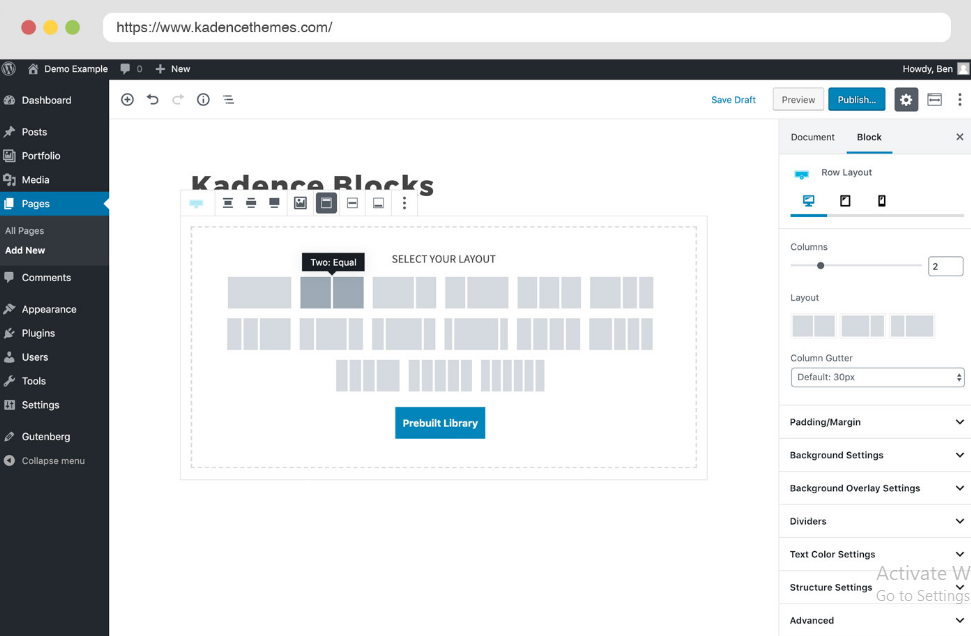
Kadence Blocks is a freemium plugin designed to extend the native WordPress block editor with advanced layout tools, styling controls, and unique layout blocks. Instead of replacing the WordPress editor with a completely separate user interface, Kadence integrates directly into it.
The primary purpose of the plugin is to bring the pixel-perfect layout control of traditional drag-and-drop builders to a clean, native Gutenberg environment.
Native Block Editor ──> Expanded by Kadence Blocks ──> Complete Layout Freedom
Free vs. Pro: What Do You Get?
The core version of the plugin is completely free and packed with essential design tools like Row Layouts, Advanced Text, and Advanced Forms. Kadence Blocks Pro extends this functionality with marketing-focused elements like countdown timers, content restriction filters, dynamic content toggles, and premium pre-built layout sections.
ALSO READ: Understanding Ngentube Cybersecurity Risks and Safe Browsing Habits
Core Features That Set Kadence Apart
Many block collections exist in the WordPress ecosystem. However, Kadence stands out for three primary reasons: deep performance optimization, responsive design toggles, and robust global styling settings.
1. Intelligent Resource Loading
Traditional page builders load massive CSS and JavaScript files across your entire website, regardless of whether a page actually uses those specific features. Kadence Blocks fixes this with an intelligent asset loading pipeline. The plugin parses the code for each specific page and only injects the CSS or script file for the exact blocks used on that specific URL. If a page does not have an accordion, the accordion script is never loaded.
2. Precise Responsive Controls
Designing for mobile screens is seamless within the block settings dashboard. Every major layout control—including typography sizes, outer padding, grid structures, and inner margins—features explicit toggle buttons for Desktop, Tablet, and Mobile views. You can edit mobile-specific arrangements instantly while previewing the changes directly inside the active editor pane.
3. Centralized Global Styling
Instead of defining font weights and color codes for every single layout component, Kadence pulls data from a centralized global palette and typography scale. If your brand color palette changes down the road, you can update it in one central location, and every corresponding element across your entire site will update instantly.
Must-Use Blocks for Custom Layouts
While the plugin features over a dozen utility blocks, a few foundational pieces do the heavy lifting for modern page design.
The Row Layout Block
The Row Layout block acts as the fundamental structural container for your designs. It replaces the default WordPress column block by offering advanced controls over background video overlays, custom section dividers, multi-column flex alignment, and custom inner column spacing.
[Row Layout Container]
  ├── [Column 1: Text & Buttons]
  └── [Column 2: Visual Media / Images]
Advanced Text Block
The Advanced Text block gives you full mastery over text styling. It lets you apply custom line heights, letter-spacing variations, dual-color gradient headings, and individual device font size adjustments without touching a line of CSS.
Advanced Form Block
Creating high-converting contact sheets or marketing capture pipelines usually requires a heavy third-party form plugin. The native Advanced Form block allows you to build clean, lightweight forms with custom fields, direct input validation, and built-in styling mechanisms right inside your primary editor workflow.
Kadence Blocks vs. The Competition
Choosing the right structure for your site means knowing how your tools stack up against the alternatives.
| Feature Metric | Kadence Blocks | Standard Page Builders | Alternative Block Suites |
| Site Performance | Excellent (Modular Load) | Often Heavy (Global Scripts) | Moderate to High Efficiency |
| UI Integration | Clean Native WordPress | Separated External Canvas | Native Block Framework |
| Global Theme Sync | Seamless (Deep Link) | Independent Styles Overrides | Varies by Plugin |
| Workflow Curve | Moderate Learning Curve | Highly Intuitive UI | Simple but Rigid Layouts |
Step-by-Step: Creating a High-Converting Hero Section
Building a landing page hero section with Kadence Blocks is straightforward if you follow a logical, step-by-step layout structure.
1.Add a Row Layout Block:Prerequisite: Set page template to Full Width.
Insert a new Row Layout block into your empty editor space. Choose a clean two-column grid structure to separate your textual arguments from your primary visual components.
2.Configure Background and Spacing:Estimated time: 2 mins.
Select the parent row container. Open the settings side-panel to adjust your background settings—either insert a clean color overlay or upload a compressed background image. Add proportional top and bottom padding (e.g., 80px for desktop) to give your content breathing room.
3.Build Out Column Content:Focus on clear information hierarchy.
Inside the left column, insert an Advanced Text block to write your H1 value proposition hook. Directly beneath it, drop a standard paragraph block followed by an Advanced Button block to act as your primary Call to Action (CTA).
4.Embed Media and Optimize for Mobile:Final polish step.
In the right column, upload your primary product mockup or clean vector graphic. Click the mobile viewport device icon in the top header toolbar to review the layout, adjusting your font scaling or column stacked order settings specifically for smartphones.
Best Practices for SEO and Performance
To keep your pages performing well in search rankings and AI summaries, follow these structural best practices:
- Maintain Strict Heading Hierarchies: Use the Advanced Text block to accurately assign proper semantic header tags ($H_2, H_3$). Never skip heading levels just to get a specific font size change; use the typography styling panel instead.
- Optimize Background Layouts: While Kadence generates efficient code, using raw, uncompressed 4MB image backgrounds inside row containers will slow your page down. Always compress your graphics and serve modern formats like WebP.
- Turn Off Unused Features: Keep your site clean by adjusting the global block settings panel. If you know you will never use specific blocks like the countdown or lottie animation elements, deactivate them entirely to prevent any backend script registration.
Conclusion
Kadence Blocks strikes a practical balance between the advanced design flexibility of complex visual page builders and the lightning-fast speed of native WordPress block output. By sticking closely to the core WordPress block architecture, it provides an excellent roadmap for building lightning-fast, future-proof, user-first websites that satisfy both your human readers and search indexing bots.
FAQs
Does Kadence Blocks require a specific WordPress theme?
No, it works seamlessly with any standard WordPress theme that fully supports the native block editor. However, pairing it with the lightweight Kadence Theme unlocks a deeper level of global customizer integration, setting a unified design palette across all blocks automatically.
Will Kadence Blocks slow down my website load times?
No, it is highly optimized for raw performance. Because it relies on a modular asset execution structure, it only executes code for elements actively running on the live URL, keeping script payloads incredibly small.
Can I completely replace Elementor or Divi with Kadence Blocks?
Yes, many creators transition away from legacy builders to Kadence to improve page speeds and Core Web Vitals metrics. While it requires adjusting to the standard WordPress block editor workflow, the design outcomes are highly comparable and significantly more lightweight.
Is Kadence Blocks fully compatible with WooCommerce?
Yes, it integrates beautifully with online shops. The developer ecosystem also provides a dedicated Shop Kit for WooCommerce, giving you specialized tools to build custom product grids, cart sections, and unique checkout templates.
Keep in the loop! Visit Fashion Edit Studio for updates.